

Start with one welcome email and one clear next step
A welcome email thanks people for signing up and tells them what to do next. Keep your first one simple: a friendly greeting, a short explanation of what they'll receive, and a link to a helpful guide or product page. You don't need to include your entire catalog.
Omnisend has a Welcome Automation preset for new subscribers. Below, you'll plan the audience, write the message, and check that the right people receive it. This guide is based on official information checked on September 6, 2026. We haven't tested a live campaign; the copy and checklist are examples. Official welcome guide
For a look at the rest of the product, read our Omnisend overview.
1. Choose who receives the welcome email
Start with people signing up for email through one form for the first time. Decide whether existing customers and people who subscribe at checkout should receive the same message. Their experience may call for different wording.
Omnisend's documented setup starts at Automations → Create workflow, where you choose a Welcome preset. The entry filters control who joins the workflow. Check the channel, where the signup comes from, and whether it must be the person's first subscription. Setup and trigger filters
Test the actual signup form you'll use. Adding an email address manually may not trigger the same workflow. If another app handles your form, test that form too.
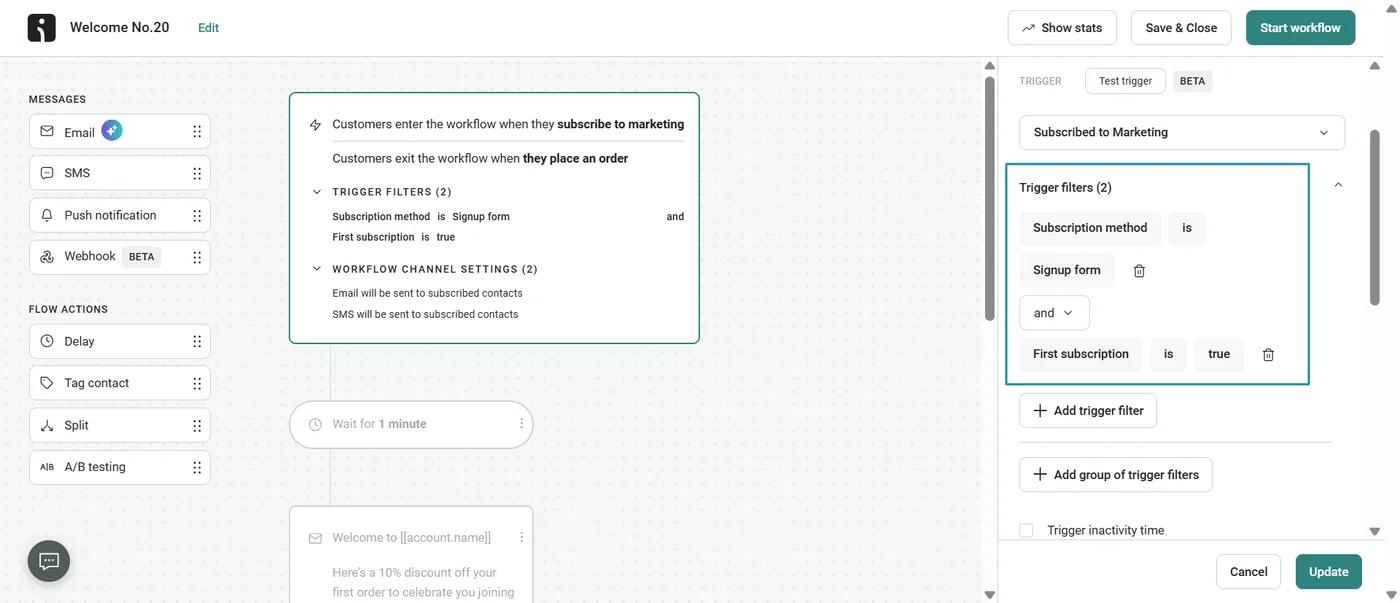
What to check: If this message is for first-time subscribers, inspect the First subscription condition before editing the email. Check that the selected signup method matches the form you actually use.
2. Write a short, friendly message
Here's sample copy for a home goods store:
Welcome to [Store Name]! Thanks for signing up. Not sure which material is right for your home? Start with our materials guide. If you have a question, just reply—we're happy to help.
Adapt this example to your store. Only invite replies if someone checks the inbox, and only link to a guide you actually have. A button labeled Read the materials guide tells readers more than a vague Click here.
For the subject line, try Thanks for joining us — [Store Name]. If your signup form promised a discount, include the offer and its conditions. If it didn't, a useful welcome message doesn't need an invented incentive.
| Part | Example purpose | Review |
|---|---|---|
| Subject | Acknowledge the signup | Recognizable store name |
| Body | Explain what to expect | Matches the signup promise |
| Button | Open a beginner guide | Working destination |
| Reply address | Offer help | Monitored inbox |
3. Use AI to help with the draft
Omnisend documents copy generation using prompts that specify purpose, tone and language. AI writing overview
Try this prompt: “Write a friendly welcome email for a home goods store. Thank the subscriber, link to a materials guide, keep it under 100 words, and do not mention discounts.” Then review the draft as you would a colleague's work.
Check product names, shipping details, and offers. Remove any claims the AI invented about popularity or results. Keep the copy short, but don't cut conditions that readers need to understand. Save the approved version so it's easy to update later.
OmnisendKeep customers coming back with emailFree plan500 emails a month, up to 250 contactsNo credit card requiredTry Omnisend's free plan
4. Check your sender setup and avoid duplicate emails
Before activating the workflow, Omnisend's guide calls for a verified sender domain and an active signup form. Complete those steps first. Before-you-begin guidance
Our sending-domain authentication guide covers the DNS records to add and how to check which emails use the verified domain.
Check whether Shopify or your previous email app already sends a welcome email. Omnisend's settings guide says to turn off the corresponding store automation when you enable the Omnisend version, so customers don't receive duplicates. Workflow settings
- Subscribe: Use the actual form with an email address you control.
- Receive: Check the expected number and timing of messages.
- Read: Open the email on a phone and follow its links.
- Exit: Check the unsubscribe link and contact details.
5. Test a real signup, not just the email preview
A preview lets you check the design, but it doesn't show whether the signup triggers the right workflow. Use an address you control to sign up through the form, just as a customer would.
Check that the subject line is readable on a phone, the email still makes sense without images, and the button opens the right page. If the message doesn't arrive, check the spam folder, subscription status, workflow conditions, and remaining email allowance.
Include automated sends in your budget; our pricing guide gives a simple worksheet. To inspect a defined audience, use the segmentation guide.
Frequently asked questions
Do I need to offer a discount in my welcome email?
Include a discount and its conditions if your signup form promised one. Otherwise, a useful greeting and a link to a real guide or product page can give new subscribers a clear next step.
Is checking the email preview enough before launch?
A preview checks the design but does not establish whether the signup triggers the right workflow. Use an address you control with the actual form, then check delivery, mobile readability, links and unsubscribe details.
How do I avoid sending duplicate welcome emails?
Check whether Shopify or a previous email app already sends a welcome message. Turn off the corresponding store automation when enabling the Omnisend version, and test the expected number and timing of messages.
What should you improve after the first send?
Look at clicks, replies, and unsubscribes. If readers don't respond, check whether the link is clear and the message matches what the form promised. More discounts or more emails may not solve the problem.
Try one change at a time, such as making the button label more specific. Once the first email delivers what you promised, consider a second message if it answers another question customers commonly ask.


