

Customer reviews are coming in. Now, where should they go? Putting every review feature at the top of a product page can make the size selector and buy button harder to find.
Start with a compact star rating near the product title and a review list after the product details. Let shoppers get the overview first, then read the text and photos when they want more detail.
This guide uses official documentation checked on September 8, 2026 (plan terms and the referral offer rechecked on September 13), with suggested layouts and checklists. We haven't tested them on a merchant's theme.
Start with two widgets: stars and a review list
A widget is a display component you add to a page. Loox offers several, but you don't need to use them all at once.
| Widget | What it helps shoppers see | Suggested starting position |
|---|---|---|
| Star Rating Widget | A rating and review-count overview | Compact, near the product title |
| Reviews Widget | Review text and customer photos | After the product information |
| Carousels, Snippets, and others | Selected feedback or shorter highlights | Add where useful after checking the basics |
Browse the official widget library to compare formats. Instead of choosing the biggest display, think about what a shopper needs before selecting a size and what they might want to read after the description.
If you're considering Loox, our overview covers its features and pricing. To start a trial, use the referral link below and check the terms shown at signup.
Check your theme and plan first
This guide uses an Online Store 2.0 theme with a location that supports app blocks. These are page components you can arrange in Shopify's theme editor. Shopify's explanation of app blocks
A vintage theme, custom-coded section, or page builder may need a different method. If there's no option to add a block, don't paste code from another tutorial and hope it fits. Ask Loox about your theme, page builder, and intended location. When a coded installation may be needed
Separate basic display features from optional extras. The current Beginner plan documentation includes review display widgets, with eligibility up to 500 total orders after the trial. Product groups, which share reviews between products, require Convert or higher. Beginner plan details and Product groups requirements
Placing reviews in two locations doesn't mean you need every AI feature. Our Loox pricing guide explains how to consider order volume and additional capabilities together.
Add the stars and list to one product template
Before editing, note which theme is live and which one you're working on. Where possible, try the layout in a duplicate, unpublished theme and review it before making it live.
Enable Loox Core Script in App embeds for the target theme. If you change your live theme, activate the script in the new one too. Core Script setup
Then open Widgets in Loox and choose Add to theme under Star Rating Widget. In the theme editor, check the product template and preview product, move the block near the title, and save. Add the Reviews Widget in the same way and try placing it after the product information. Official widget installation steps
You're editing a template, not just the product visible in the preview. Other products using that template share the layout, so open a few of them before calling the work finished.
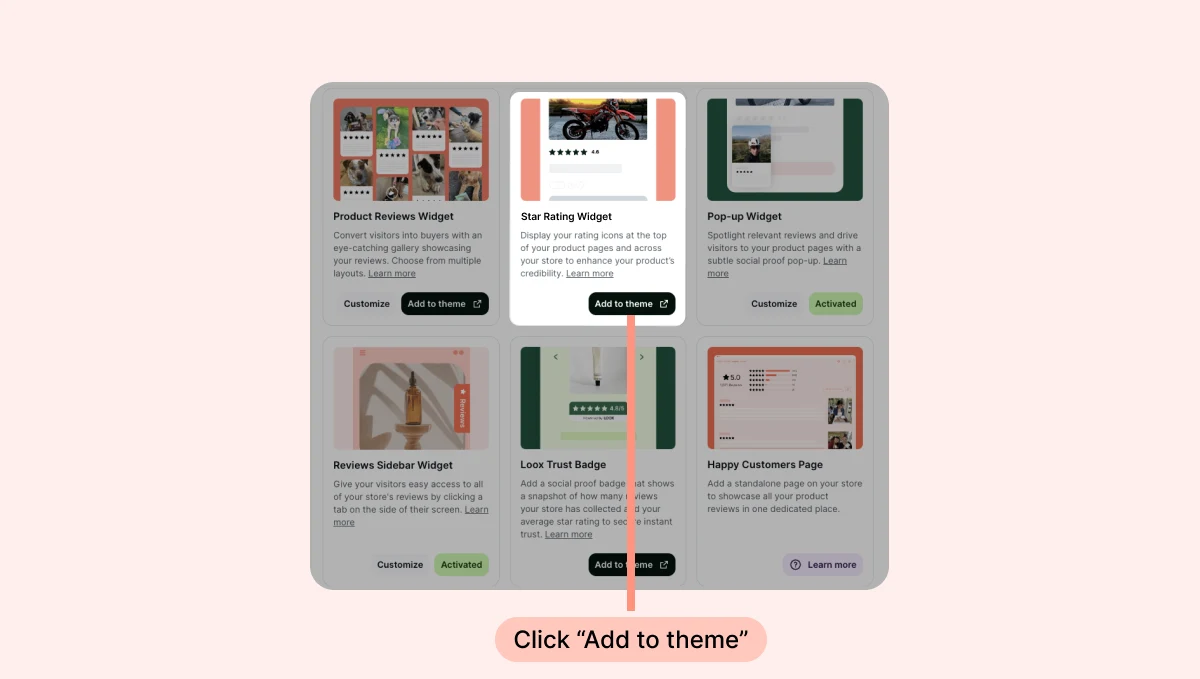
Use this view to distinguish the review-list card on the left from the star-rating card in the center. Check the placement in your theme after adding it. This is an official documentation example, not a store tested by our team.
For a walkthrough, watch Loox’s official video, “Adding the Loox Product Reviews Widget to Your Pages”. Focus on the transition into the theme editor and adding the reviews display. It is an older tutorial, so compare individual controls with the current help guide (publisher and link checked September 19, 2026).
Give photos room without pushing buying options away
For a store selling bags, this is one possible reading order.
- Product title and star ratingIdentify the item and see that reviews are available.
- Price, color, and buy buttonKeep purchasing options together.
- Size, materials, and useExplain the product's details.
- Review listLet shoppers explore genuine customer text and photos.
The Reviews Widget offers Grid, List, and Mosaic layouts, with controls for text, colors, and how many reviews appear before loading more. Reviews Widget customization
Try Grid if photo comparison is your priority, or start with List if your reviews need more reading space. That's a design suggestion, not a claim that one layout has produced higher sales in our testing.
Reducing how much appears at once may work better than shrinking all the text. Keep text legible against the background and include readable review counts rather than relying on star color alone.
Use the official widget library to compare layouts with your own product photos and review lengths in mind.
Make sure the reviews belong to the right product
Enabling Show all reviews on the star widget displays a storewide aggregate instead of that product's individual figures. Check this setting if you want to show product-specific ratings. Star Rating Widget display scope
Product groups also share reviews across their member products. Grouping separate color listings for the same bag has a different meaning from grouping a bag, a pouch, and a wallet. How grouped reviews work
Don't combine unrelated products simply to display a larger review count. A shopper should be able to understand which item the feedback describes.
Check each review's product association and published status in the admin. A new product with no reviews is a normal state; you don't need to fill the space with invented feedback or ratings. See our review request guide when you're ready to collect genuine customer responses.
Walk through the purchase flow on mobile and tablet
Once the layout looks right, interact with it as a shopper would.
| Action | What should be clear | If it isn't |
|---|---|---|
| Open the page | The product name, price, and options | Reduce review components near the top |
| Choose a color or size | Selectors and the buy button remain usable | Adjust overlaps and spacing |
| Tap the star rating | It opens the review experience you configured | Check its click behavior, including floating reviews |
| Read a long review | Legible text without page overflow | Review typography, width, and layout |
| Open another product | The scope of its rating is understandable | Check aggregate settings and Product groups |
Click behavior depends on settings, including the option to open a floating review display. Don't assume a star tap always scrolls to the list below. Star widget customization
Content that sits comfortably side by side on desktop can become a long, narrow column on a tablet. Review portrait and landscape layouts. A real device also helps reveal controls that are awkward to tap.
If a widget is missing, narrow down the cause
- Are you looking at the theme you edited? Changes saved to an unpublished theme won't appear on the current live one.
- Is Core Script enabled? Check App embeds for that particular theme, especially after a theme change.
- Does the product use the edited template? A different template needs its own layout check.
- Are published reviews and visibility settings aligned? The widget can be configured to hide when a product has no reviews. Review list visibility settings
- Are there two star displays? Compare the theme's native rating, an old app, custom code, and the new block. Identify the source of each before removing anything.
If no Loox blocks appear, check the integration with your selected theme. Loox documents how to choose a published or unpublished theme for integration. Connect Loox to a specific theme
Your first milestone is simple: the right reviews appear on the right product, and shoppers can still buy without hunting for the controls. Once that works, consider snippets or homepage displays. Our Loox overview can help you choose what to add next.